Versions
A mini doesn't always come out right the first time: a bow goes missing, a pet on a shoulder turns into a blob. This page is about making it again, lining up a few versions, and keeping the best one.
Which one to use
| You want to… | Use |
|---|---|
| Carry on with a mini that didn't finish | Try Again |
| Make the same mini again, with a different variation | Make Another Version… |
| Keep the picture you like and only make the 3D shape again | New 3D Shape… |
| Fix something in the picture, like a cape hiding the arms | Make Another Version… or New 3D Shape…, with What to change |
| Change a setting, the description or the picture, and make it again | Edit & Make Again… |
| Have the same shape at a second size | Duplicate… |
All of them are in a mini's right-click menu and in the Mini menu. Each new mini waits its turn in the queue, so you can line up several and carry on meanwhile.
Try Again on a mini that didn't finish
When something goes wrong while a mini is made, its page says This mini didn't finish, with why, and a Try Again button. (A new mini you stop yourself is moved to the Trash instead.) Try Again is also in its right-click menu, the Mini menu, its notification, and the progress in the toolbar.
Try Again carries on from the step that failed. A mini is made in three steps: the picture, the 3D shape, and the print file. A step that already finished isn't done again. So if the 3D shape failed, the picture isn't drawn again, and if only the print file failed, Try Again takes about as long as a resize.
Try Again makes it with the same 3D model as before. If you've removed that model in Settings → 3D Model, download it again first. If you stop a Try Again, the mini goes back to how it was, ready to try once more.
Tip
Next to Try Again is Report a Problem…. It gathers what a bug report needs, with your private details taken out. See Report a problem or an idea.
Make another version
Right-click a mini → Make Another Version…, then press Make. Mimic makes it again from the same picture or description and the same settings, with a new variation number. The variation number is what the drawing and the 3D shape start from, so a small detail that came out as a blob may come out right this time.
The new version goes next to the first, in the same project.
Make only a new 3D shape
Right-click a mini → New 3D Shape…, then press Make. It keeps the mini's picture and makes only the 3D shape again. It's quicker than a new version, and a drawing you like stays as it is.
It's there once the mini's picture has been made. A mini you imported as a 3D model has no picture, so Make Another Version, New 3D Shape and Edit & Make Again are off for it. Resize and Duplicate still work.
Say what to change in the picture
Something in the picture to fix, like a cape that hides the arms or a sword cut off at the edge? In Make Another Version… or New 3D Shape…, type it in What to change, for example close the cape so both arms show, then press Make.
- Mimic redraws the mini's picture with your change.
- Mimic stops and shows it to you: Check the picture.
- If the change came out right, press Build Shape to make the 3D shape from it. If not, press Draw Again to draw it again with a new variation number.
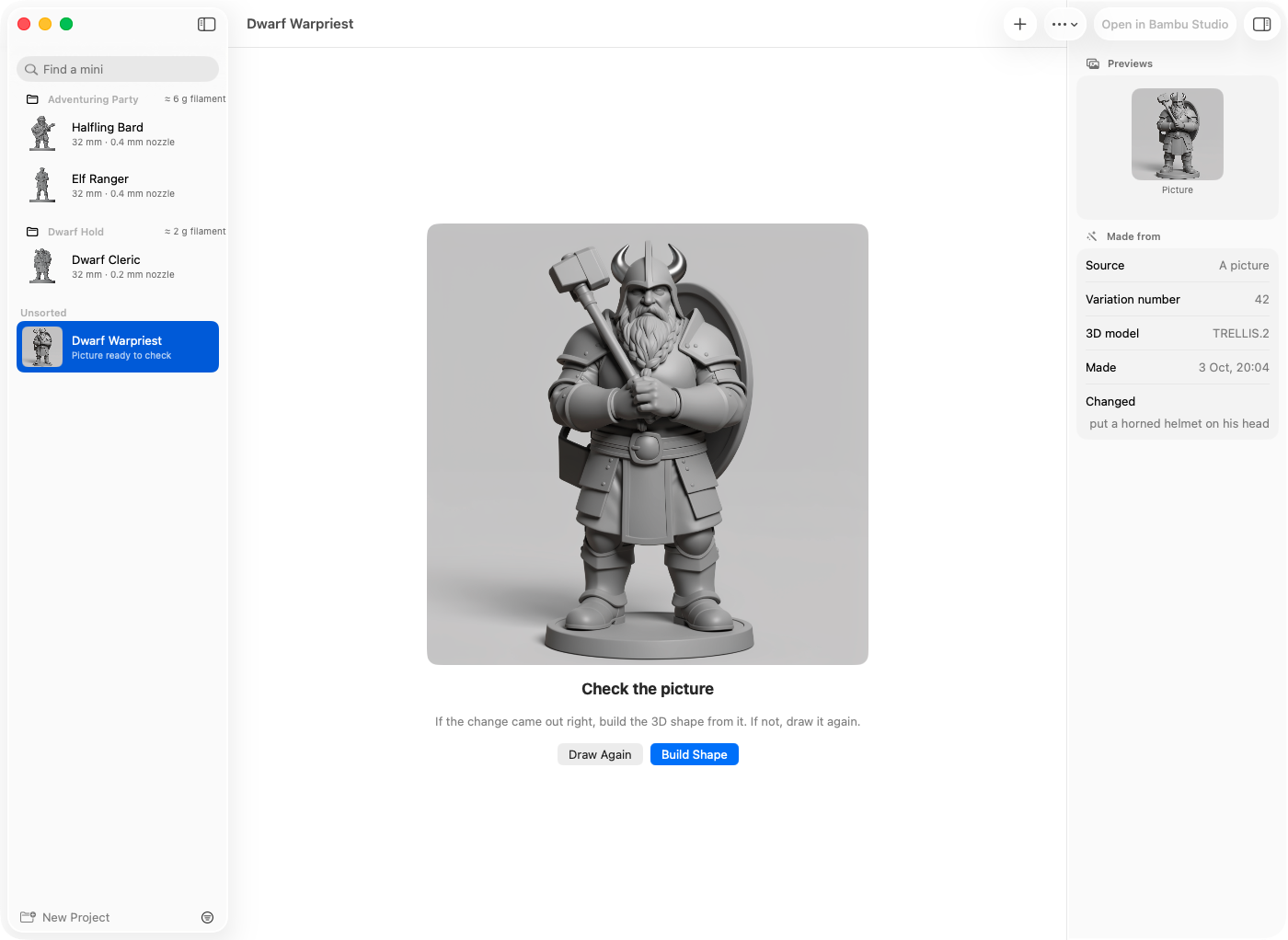
The picture waits for you. The list shows the mini as Picture ready to check, and its notification has a Build Shape button.
Each version you make with a change starts from the picture of the one before, so changes add up. Under Changed before, the sheet lists what's already been changed. The mini's Made from details list them too, under Changed and Then.
A change needs Draw Things, or an online service (see Settings). If you've chosen an AI helper for descriptions, it turns your words into an instruction for the redraw first ("Writing the change…"). To change something when you first make a mini, see Making a mini.
Note
A change redraws the picture as a grey sculpt. A mini made from a colour picture with the grey sculpt off loses its colours in the export for virtual tabletops once you make a version of it with a change.
Edit & Make Again
Right-click a mini → Edit & Make Again…. New Mini opens filled in from the mini: its picture or description, the grey sculpt, cartoon, sizes and base, project and variation number. Change what you like and press Make Mini.
If you change nothing, the same description draws the same picture. If the mini was made with a 3D model other than the one chosen in Settings, New Mini uses that model again if it's still downloaded, and says so, with a button to use the one in Settings instead.
Note
A mini made this way is a mini of its own, not a version: it isn't grouped with the first, and Keep This One… doesn't touch it.
Duplicate a mini at another size
Want the same mini twice, one for the table and one for the shelf? Right-click it → Duplicate…, name the copy and press Duplicate. Resize opens next, to choose the copy's size. Only the print file is made again, in about a minute, and the shape stays exactly the same.
The copy isn't a version, so Keep This One… never moves it to the Trash. Changed your mind? Edit → Undo moves the copy to the Trash. See Sizes and bases for Resize.
Compare versions and keep the best one
A mini's page lists its versions under Versions, in the details panel on the right. The one you're looking at is outlined. Click another to see it.
- Compare Side by Side… shows two finished versions in 3D next to each other. Turning or zooming one turns and zooms both. Choose which version each side shows at the top, and press Done when you're finished.
- Keep This One… keeps the version you're looking at and moves the others to the Trash. It's under each side in Compare Side by Side too.
After Keep This One…, Mimic offers to give the kept version the plain name. For example, raven-3 becomes raven, since the others are in the Trash. Press Rename, or Cancel to keep its own name.
A version that's being made stays where it is. Waiting ones leave the queue. Edit → Undo puts the others back from the Trash.
Note
Versions are grouped when they're in the same project and were made with Mimic 0.6.0 or newer. If you move a version to another project, it's no longer listed with the others.
How versions are named
A new version takes the first mini's name with the next number: raven becomes raven-2, then raven-3. The number is the next one free across all your minis. A version of raven-2 is raven-3, not raven-2-2.
The name you see follows the name you gave: a version of "Élodie" is shown as "Élodie 2". Duplicate… suggests a name the same way, like "Raven 2", and you can change it. To give any mini a better name, right-click it → Rename… (see Your minis and projects).
In Terminal, mimic make-another, mimic make-another --new-shape, mimic duplicate,
mimic retry and mimic keep do the same. See Mimic from a terminal.