Getting started
What you need, how to install Mimic, and what happens the first time you open it.
What you need
- A Mac with Apple silicon (M1 or newer), on macOS 26 (Tahoe) or newer. Every such Mac can update to it for free, in System Settings → General → Software Update.
- 32 GB of memory. Mimic warns you before the download if your Mac has less: making a mini may be very slow or fail.
- About 25 GB of free space.
- A 3D printer, and a slicer for it, such as Bambu Studio, OrcaSlicer, PrusaSlicer or UltiMaker Cura.
- Optional: Draw Things, a free app. With it, Mimic can make a mini from a description, and turn your picture into a grey sculpt first, which gives better minis. See Set up Draw Things. Or, instead of Draw Things, an account with Black Forest Labs or OpenAI, which make those pictures online.
Mimic needs no account and uploads nothing: everything runs on your Mac, unless you choose online pictures or a cloud AI helper in Settings. Privacy says what each one gets.
Install Mimic
- Download the
.dmgfile from the latest release and open it. - Drag Mimic onto Applications.
- Open Mimic from your Applications folder.
With Homebrew
If you use Homebrew, you can install Mimic with one command in Terminal instead of steps 1 and 2:
brew install --cask yonatankarp/mimic/mimic
It puts Mimic in your Applications folder and adds the mimic command to Terminal.
Then open Mimic from your Applications folder. The first time, your Mac may still say it can't
check it: see below. Mimic keeps itself up to date, so you don't need
brew upgrade.
If your Mac says it can't check Mimic
The first time you open Mimic, your Mac may say it can't check it ("Apple could not verify Mimic"). That's because Mimic is a free app that isn't registered with Apple. It needs one extra step, once:
- Press Done on that message.
- Open System Settings → Privacy & Security.
- Scroll down to "Mimic was blocked" and press Open Anyway.
- Confirm with your Mac password or Touch ID.
The disk image has the same steps in a file called "If Mimic won't open".
Your Mac may also ask whether Mimic can use your Documents folder, where your minis are kept. Allow it.
Choose a 3D model and download it
The first time you open it, Mimic shows Welcome to Mimic: before your first mini, it needs its 3D engine, the part that turns a picture into a model. It runs on your Mac, so nothing you make is uploaded.
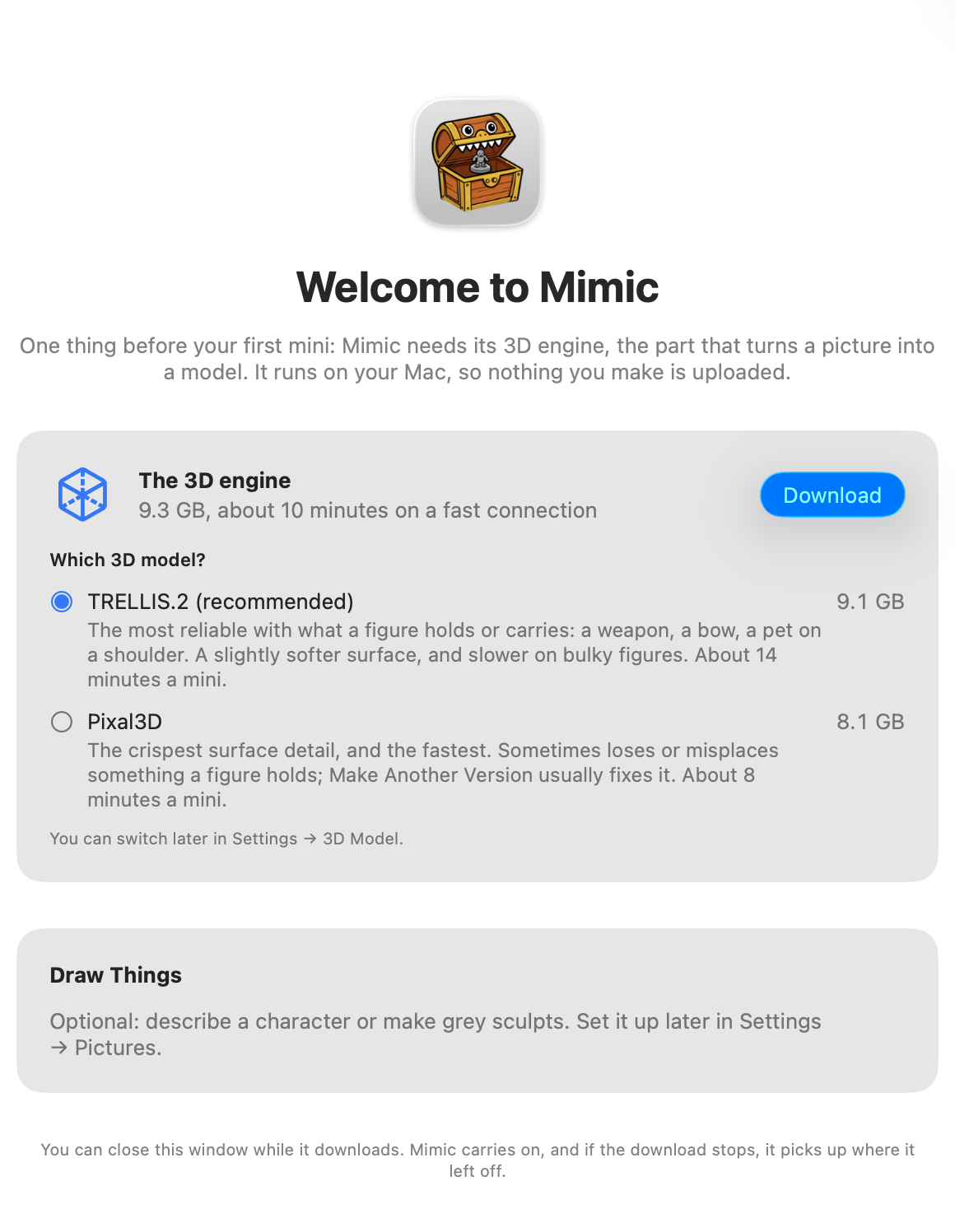
- Under Which 3D model?, choose one:
- TRELLIS.2 (recommended): the most reliable with what a figure holds or carries, like a weapon, a bow or a pet on a shoulder. About 14 minutes a mini. 9.1 GB.
- Pixal3D: the crispest surface detail, and the fastest. About 8 minutes a mini. 8.1 GB.
- Press Download.
The download is the model, plus the 3D engine and Draw Things' command line tool: 9.3 GB in all with TRELLIS.2, or 8.3 GB with Pixal3D, as The 3D engine says above the choice. The window shows how much is done, the speed and the time left. You can keep using your Mac meanwhile, and close the window: Mimic carries on. Quitting Mimic asks first, as it stops the download. If the download stops, press Try Again: it picks up where it left off.
Not sure which model? Take TRELLIS.2. You can download the other, or switch, any time in Settings → 3D Model. Choose a 3D model compares them.
Set up Draw Things
Draw Things is optional. Your own pictures work without it. With it, Mimic can also:
- make a mini from a description, by drawing it first,
- turn your picture into a grey sculpt first, which gives cleaner minis,
- make minis from cartoons,
- redraw a picture with what to change, like "close the cape so both arms show".
The welcome window only says it's optional. Set it up whenever you like in Settings → Pictures, which lists three steps and ticks each one off as it's done:
- Get Draw Things from the App Store. It's free.
- Connect Mimic to it. Mimic does this itself, with Draw Things' command line tool, which comes with the 3D engine. Draw Things doesn't even need to be open.
- Download FLUX.2 Klein. In Draw Things' model list, search for FLUX.2 Klein and download it. It's big, so give it a few minutes.
Rather not install Draw Things?
In Settings → Pictures, set Make pictures with to Black Forest Labs, online or OpenAI, online, and save your API key from that service. The pictures are then made online, on your account, and Draw Things isn't needed. Your description, or the picture to redraw, is sent to that service, and each picture is one paid request. See Choose what makes the pictures.
Without the command line tool
If Mimic's copy of the command line tool is missing, Mimic talks to Draw Things directly instead. In Draw Things, open Settings → Advanced → API Server, turn it on, choose HTTP and set the port to 7860. With Open Draw Things when needed on, in Settings → General, Mimic opens Draw Things in the background when a mini needs a picture, and quits it afterwards if it opened it.
Take the tour
Once the download is done, a short tour shows you around, in five stops on the real buttons: a quick look around, starting a new mini, making it, a finished mini, and Settings.
To learn by doing, press Use the Sample at the second stop: New Mini opens with a sample picture of a dwarf, ready to make. Press Make Mini: its progress opens in the toolbar, and the tour carries on when you close that.
Press Skip Tour (or Esc) to leave it. To see it again, choose Help → Show Tour.
Find your way around
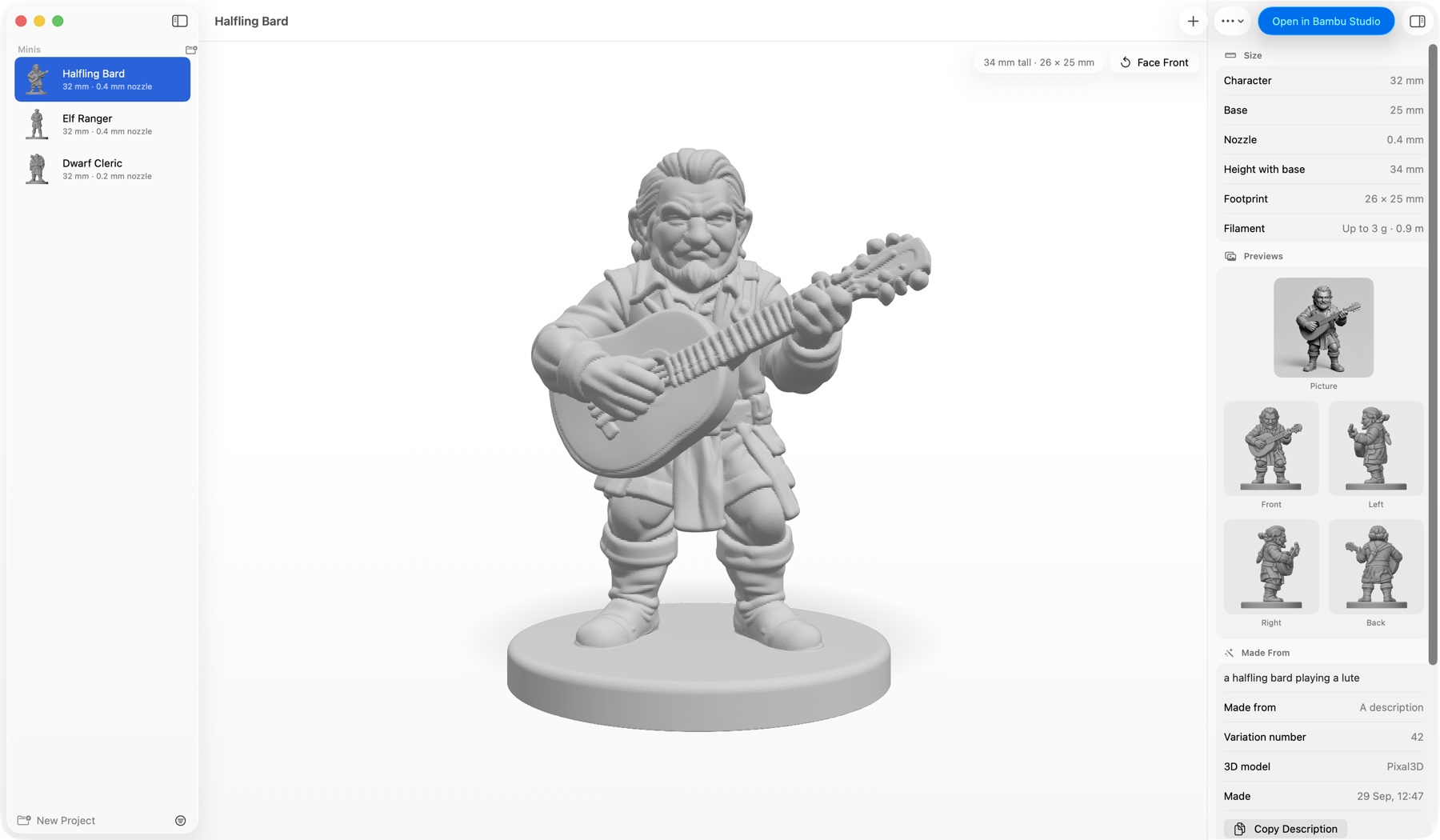
- On the left, your minis, grouped into projects.
- In the middle, the mini you picked, in 3D. Drag it to turn it around.
- On the right, its size, filament, previews, versions, how it was made and print tips. Hide or show this panel with Show Details in the toolbar.
- In the toolbar, New Mini, the progress of the mini being made, and Open in your slicer.
Mimic explains each choice as you make it: hover over one for a tip. If something isn't set up, Needs Setup appears in the toolbar. Click it to open Settings, which says what's missing and how to fix it.
Settings is in the Mimic menu (Cmd+,). In Settings → General, under Open minis in, choose the slicer Open in sends your minis to. Mimic lists the slicers it finds on your Mac. Settings explains every tab.
Your minis are kept in Documents → Mimic, the same folders you see in Finder.
Now make your first mini.
Keep Mimic up to date
Each time you open Mimic, it checks for a new version. When there is one, a window shows it a few seconds later, with what's new: click Install Update. Mimic checks that the update really comes from its makers, installs it and opens again. Remind Me Later leaves a small note in the toolbar, like "Mimic 0.12.0 is available", and asks again next time you open Mimic; Skip This Version stops Mimic showing that version when it opens, though checking yourself still shows it.
To check yourself, choose Mimic → Check for Updates….
Mimic never installs an update while a mini is being made or waiting in the queue. The note then says it installs when the queue is done, and it does. If Mimic is asking you something then, or showing a window to save a file, the update waits until you've answered.
To stop Mimic checking when it opens, open Settings → General and, under Updates, turn off Check for updates when Mimic opens. Check Now checks straight away. Only public release information is read; nothing about your Mac or your minis is sent.
Use Mimic from Terminal
Mimic is also a mimic command, with the same engine as the app. To add it to Terminal:
- Finish the first download.
- Choose Mimic → Install Command-Line Tool….
- Press Copy Command, paste it into Terminal and press Return. It asks for your Mac password, once.
If you installed Mimic with Homebrew, mimic is already there: skip these steps.
Then type mimic to make minis from there. Every command is in
Mimic from a terminal.