Better minis from pictures
How to choose and prepare a picture, or write a description, so Mimic makes the best mini it can. Making a mini step by step is in Making a mini.
Choose a good picture
The 3D model only sees one side of your character, and guesses the rest. It does best with:
- The whole character, head to feet. Nothing cut off at the edges. For anything else, the whole object.
- A plain background. Mimic cuts the character out of its picture itself, and a busy background makes that harder.
- Chunky, bold shapes. Big hands, a big weapon, a clear face. Small details, like a pet on a shoulder, a thin bow string or fine texture, may come out soft.
- What it holds, close to its body. A sword held against the chest prints; a staff held out at arm's length may come out loose or thin.
- A big enough picture. At least 512 pixels on its longest side.
New Mini warns you about a small picture, and about a character picture that's wider than it is tall, since that may not show the whole body.
You don't need to tidy a picture first: phone photos are turned upright, and big ones made a sensible size, when you add them. A picture with a see-through background is already cut out, so Mimic doesn't need to cut it out again.
If something it holds goes missing
Sometimes the 3D model makes a held bow or staff as a separate piece, not joined to the hands. Mimic leaves a loose piece like that out of the print file, since it would print as a separate part, and the mini's page says so. Make another version, or use TRELLIS.2, which keeps held things most reliably (see Choose a 3D model).
The grey sculpt
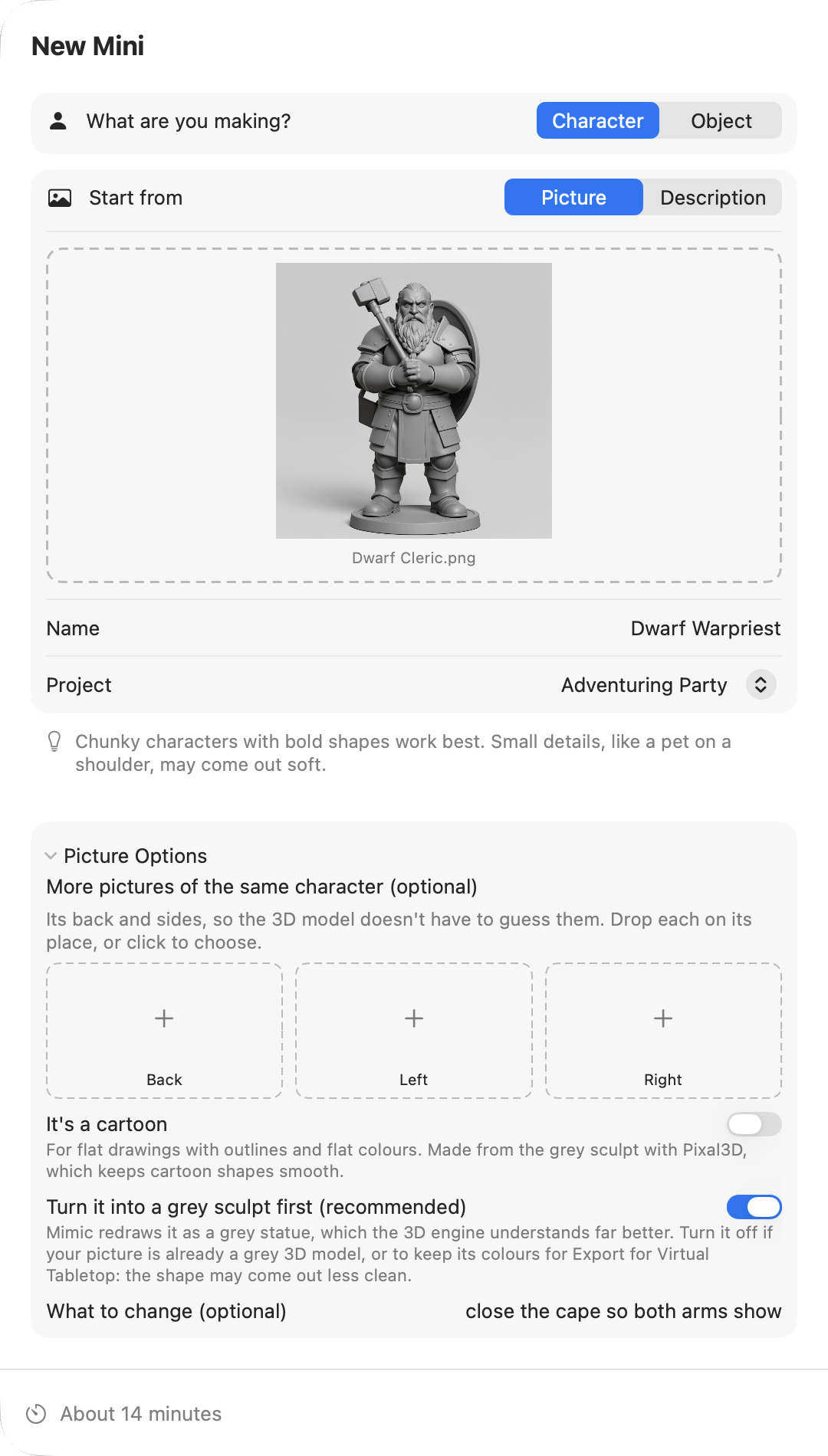
Under Picture Options in New Mini, Turn it into a grey sculpt first (recommended) has Mimic redraw your picture as an unpainted grey statue, with the same pose, before the 3D model sees it. The 3D model understands a grey sculpt far better than a painting or a photo, so the mini comes out cleaner. It needs Draw Things (see Getting started), or an online service (Black Forest Labs or OpenAI), which is sent your picture to redraw it (see Choose what makes the pictures).
Leave it on, unless:
- Your picture is already a grey 3D model, such as a render of a sculpt. There's nothing to gain from redrawing it.
- You want the mini in colour on a virtual tabletop. With the grey sculpt off, a mini made from a colour picture keeps its colours, back and sides too, and Export for Virtual Tabletop… keeps them. With it on, the export comes out grey.
Without the grey sculpt, the shape may come out less clean.
Cartoons
A flat 2D cartoon, with outlines and flat colours, can come out as a flat sheet. Turn on It's a cartoon under Picture Options in New Mini for those. A cartoon:
- always gets the grey sculpt: without it, it comes out flat,
- is always made with the Pixal3D model, whichever one you chose in Settings. Pixal3D keeps cartoon shapes smooth, where TRELLIS.2 builds them out of flat panels.
It's for characters made from a picture, and it needs the Pixal3D model and Draw Things (or an online service). If you don't have Pixal3D yet, New Mini says "Cartoons need the Pixal3D model", with Open Settings: download it in Settings → 3D Model.
Try Again and Make Another Version make a cartoon the same way.
Add pictures of the back and sides
With only a front picture, the 3D model guesses what the back and sides look like. If you have more pictures of the same character, from a model sheet or a figure you photographed all round, give them to it.
Under Picture Options, More pictures of the same character (optional) has three places: Back, Left and Right. Drop a picture on each one you have, or click it to choose one. Any of them will do, and each goes through the grey sculpt like the front picture.
- They work with TRELLIS.2 only. The places show only when the mini will be made with TRELLIS.2. With Pixal3D, New Mini says "TRELLIS.2 can also use pictures of the back and sides." instead; on a new mini, Open Settings beside it lets you switch. (Edit & Make Again… keeps the model the mini was made with: see Versions.) A cartoon (always Pixal3D) shows neither. Pictures you've already added come back if you switch to TRELLIS.2 again.
- They take longer. The 3D step takes nearly three times as long. The time beside Make Mini counts it.
Say what to change in a picture
Is there something in the picture that would make a bad mini, like a cape hiding the arms, a sword cut off at the edge, or a stand under a vase? Say it in What to change (optional), under Picture Options, in plain words:
- "close the cape so both arms show"
- "make the sword shorter so it fits in the picture"
- "remove the stand, make the handle thicker"
Mimic redraws the picture with your change, as a grey sculpt. A change always gets the grey sculpt, even if you turned it off. Then Mimic stops before the slow 3D step, so you can check it: the mini's page shows the redrawn picture under Check the picture, and so do the toolbar and a notification.
- Build Shape carries on and makes the 3D shape from it.
- Draw Again draws the picture again, with a new variation number.
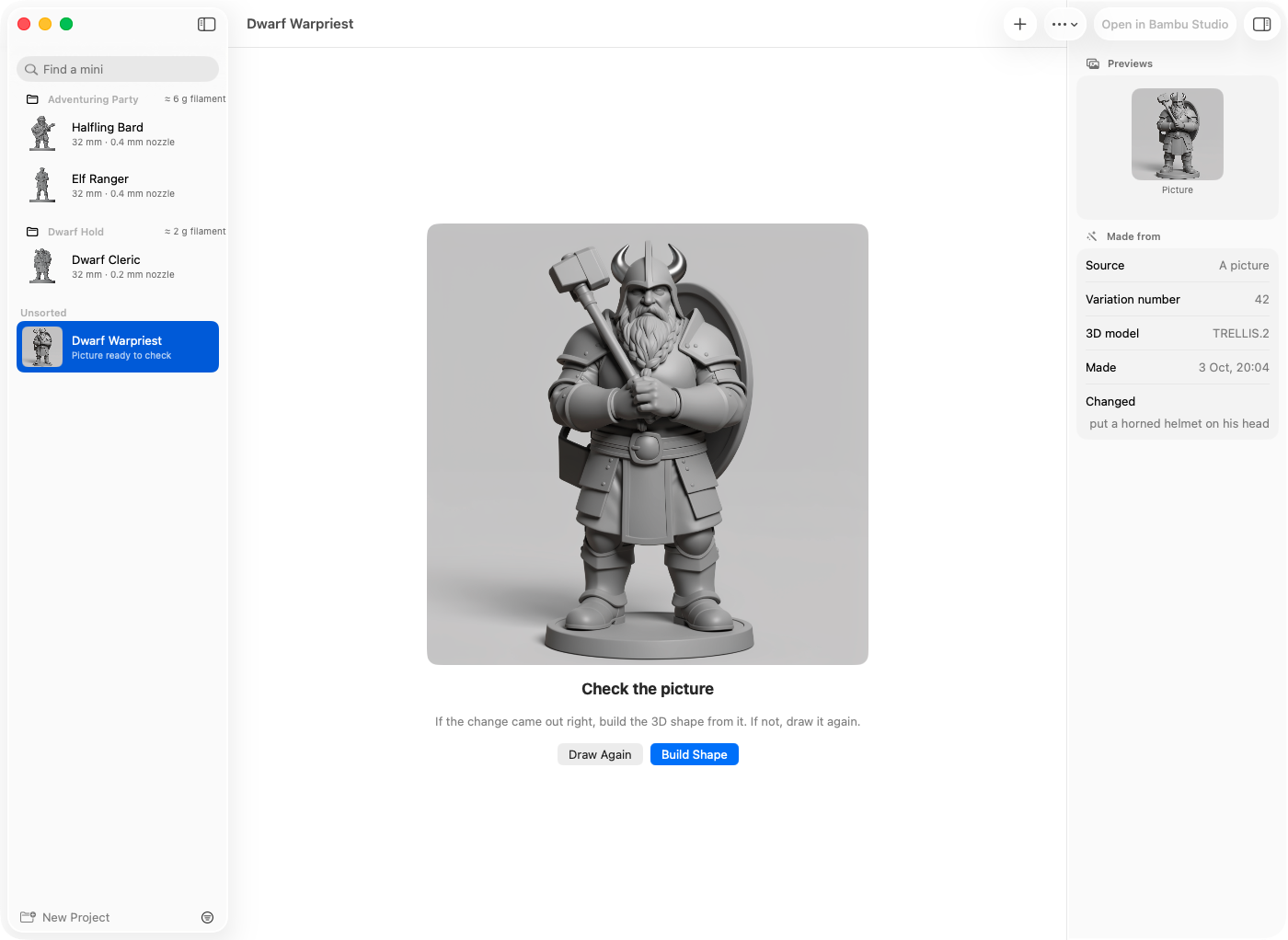
You can also say what to change when you make another version of a mini, or a new 3D shape (see Versions). Each change starts from the picture the version before was drawn as, so changes add up: close the cape, then shorten the sword. New Mini and the mini's Made from details list every change, oldest first.
If you set up an AI helper for descriptions, it also rewrites your change into a precise instruction before the picture is redrawn. New Mini says "Writing the change…" meanwhile.
A change needs Draw Things, or an online service. In Terminal it's --change, and Terminal doesn't stop to show you the
picture: see Mimic from a terminal.
Write a description that works
Without a picture, Mimic draws your character from a description first, then makes the mini from that drawing. Descriptions work best when they:
- Start with what it is. "dwarf cleric", "squat cast-iron teapot". For a character, Mimic already asks for a full-body tabletop miniature, so you don't need to say so.
- Say what it holds and how. "holding a warhammer against his chest, shield on his back". Things held close to the body come out best.
- Describe shapes, not effects. Glowing, sparks, smoke and flowing magic don't print. Neither do a background, a scene or a second character.
- Stay short. A sentence is enough. For more, let the AI helper write it (see Making a mini).
Each description has a variation number, under Advanced. The same description and the same number give the same drawing; change the number for a different take.
Choose a 3D model
Mimic has two 3D models. You choose one when you first set Mimic up, and can switch any time in Settings → 3D Model. Each mini remembers the one it was made with, so Try Again uses the same.
| TRELLIS.2 (recommended) | Pixal3D | |
|---|---|---|
| Good at | Keeping what a figure holds or carries: a weapon, a bow, a pet on a shoulder | The crispest surface detail, such as faces and rivets |
| Watch out for | A slightly softer surface | Sometimes loses or misplaces something a figure holds; another version usually fixes it |
| Time | About 14 minutes a mini; slower on bulky figures | About 8 minutes a mini |
| Back and side pictures | Yes | No |
| Cartoons | No: they're always made with Pixal3D | Yes |
Times are for a 32 mm mini on an M2 Max. Once you've made a few, Settings shows the time for your Mac. In testing, TRELLIS.2 kept the held part right 9 times out of 9, and Pixal3D 4 times out of 10.
So: TRELLIS.2 for most minis, especially anything holding a weapon or carrying something. Pixal3D when speed or sharp detail matters more, and for cartoons, which use it whatever you choose.
Having both downloaded takes more space, but lets you switch freely and make cartoons.