When something goes wrong
What to do when a mini doesn't finish, when Mimic says it needs setting up, or when something else isn't right, and how to send a report so it can be fixed.
A mini didn't finish
When a mini stops part way, Mimic tells you, and you lose nothing: its page says This mini didn't finish, with the reason underneath. The same happens in the progress popover in the toolbar, and in a notification when you aren't looking at Mimic.
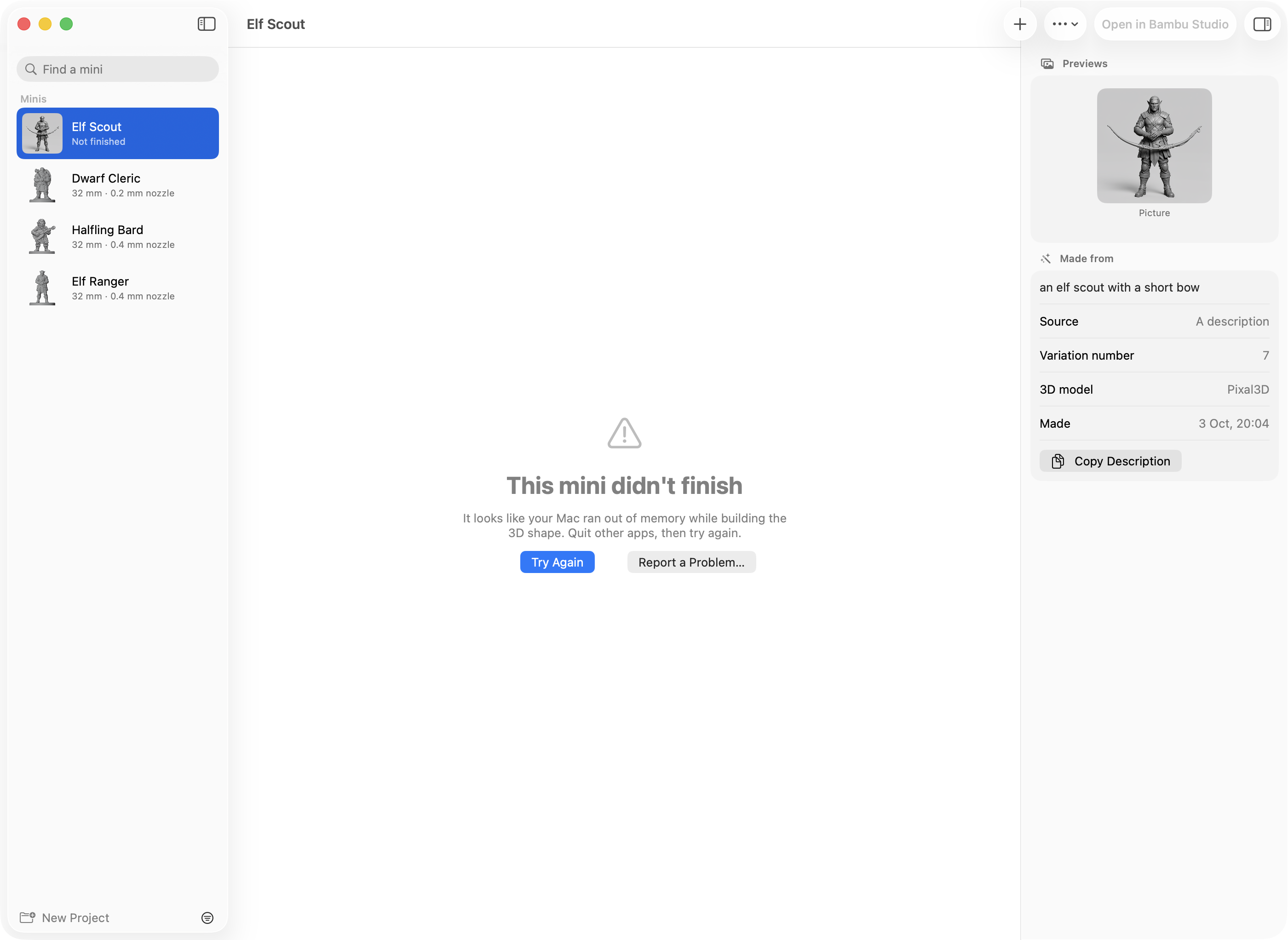
Press Try Again on its page, in the popover or on the notification. You'll also find it in the Mini menu and when you right-click the mini. Try Again carries on from the step that failed, with the same picture and settings: if the picture was already made, it isn't drawn again, and if the 3D shape was already built, only the print-ready file is made again. It joins the queue like any other mini.
A few things to know:
- Read the reason first. It says what to do when there's something to do: press Repair next to the 3D engine in Settings, use a picture with a plainer background, or, when your Mac ran out of memory, quit other apps first (see Not enough memory). Try Again on its own would only fail the same way.
- Try Again uses the 3D model the mini was first made with. If you've removed that model, Mimic says so: download it again in Settings → 3D Model, or make a new version instead.
- When Draw Things isn't running or isn't set up, the popover also shows Open Setup, which opens Settings → Pictures on the steps to fix it.
- A model you imported has no picture to make again, so it shows Resize This Mini… instead, which makes its print-ready file again.
- Stopping isn't failing. A new mini you stop goes to the Trash. A resize you stop keeps the size it had. Stopping a Try Again puts the mini back how it was, ready to try again.
- If it fails the same way again, try Make Another Version…: the same picture and settings with a different variation number often gets past a problem one number runs into. If it still fails, report it.
Needs Setup
If something Mimic needs is missing, Needs Setup appears in the toolbar, and New Mini says "Mimic isn't fully set up yet" with an Open Settings button. Hold the pointer over Needs Setup to see what's missing, and click it to open Settings, which lists every check and how to fix it.

| Check | What it means | How to fix it |
|---|---|---|
| 3D engine | The part that turns a picture into 3D is missing, won't start, or is an older version. | Press Repair next to it. Mimic downloads it again. |
| 3D model files | Some files of the 3D model in use are missing or cut short. | Press Download next to it. Mimic fetches only what's missing. |
| Free disk space | Less than 5 GB is free on the disk your minis are on. | Free up some space: each mini takes about 150 MB while it's being made. |
| Draw Things app | Draw Things isn't installed. Optional: your own pictures still work. | Install Draw Things from the Mac App Store. It's free. |
| Draw Things is open and connected | Mimic can't reach Draw Things. Optional. | See Draw Things isn't found below. |
| FLUX.2 Klein model in Draw Things | Draw Things doesn't have the picture model Mimic uses. Optional. | In Draw Things' model list, search for FLUX.2 Klein and download it. |
| Black Forest Labs key works or OpenAI key works | Only when pictures are made online: no key is saved, or the service turned it down. Optional. | See Online pictures don't work below. |
| A slicer to print with | Mimic didn't find a slicer. Optional. | Install a slicer such as Bambu Studio, OrcaSlicer, PrusaSlicer or Cura. Until then Mimic opens minis with your Mac's default app for 3D files. |
Only the first three stop you making minis. The others switch off a feature: the Draw Things ones (or the online service's key) switch off making a mini from a description, the grey sculpt and What to change.
Settings checks again every time you open it, and Check Again checks now. While a mini is being made the checks wait until it's done.
Common problems
Your Mac says it can't check Mimic
Mimic is a free app that isn't registered with Apple, so the first time you open it your Mac may say it can't check it. You only have to let it through once:
- Press Done on that message.
- Open System Settings → Privacy & Security.
- Scroll down to "Mimic was blocked" and press Open Anyway.
- Confirm with your Mac password or Touch ID.
The first download stopped
Mimic needs to download its 3D engine once (8.3 to 9.3 GB, depending on the 3D model). If the download stops, the welcome screen says why. Fix that, then press Try Again: Mimic carries on where it stopped and keeps what's already downloaded. If you lost your connection, check it and press Try Again. If the server had a problem, wait a few minutes first. A file that came down damaged is downloaded once more.
If Mimic says the 3D engine doesn't start on this Mac, your Mac doesn't have an Apple chip. Mimic needs an M1 or newer.
Not enough space
Mimic checks there's room before it downloads anything, and tells you how much it needs. After that, each mini takes about 150 MB while it's being made, and the Free disk space check wants at least 5 GB free.
To make room, you can remove a 3D model you don't use in Settings → 3D Model (Remove…). Mimic says how much space that frees before it removes anything, and the minis you made with it stay.
Not enough memory
Mimic is made for Macs with 32 GB of memory. On a Mac with less, the welcome screen warns you that making a mini may be very slow or fail. If minis fail on such a Mac:
- Quit other apps while a mini is being made.
- Try Pixal3D in Settings → 3D Model. It needs less memory than TRELLIS.2, and it's faster.
Draw Things isn't found
Mimic only needs Draw Things to draw a character from a description, make a grey sculpt or change a picture, and not at all when pictures are made online (see Online pictures don't work). Your own pictures work without it. If it's set up and Mimic still can't use it:
- Is it in your Applications folder? Mimic looks for Draw Things in Applications (yours or the Mac's). Installed from the App Store, it's there.
- Is FLUX.2 Klein downloaded in Draw Things? In Draw Things' model list, search for FLUX.2 Klein and download it.
- Is Draw Things' API server on? Mimic usually talks to Draw Things through Draw Things' command line tool, and then the API server doesn't matter. If Settings doesn't say Draw Things connected through its command line tool, open Draw Things, then Settings → Advanced → API Server: turn it on, choose HTTP, and set the port to 7860.
- Did you turn off Open Draw Things when needed? Then Draw Things has to be open while a mini needs a picture. Turn it back on in Settings → General.
If a mini stopped because Draw Things didn't answer in time, Draw Things was busy or stuck: Mimic waits up to 15 minutes for each picture. Quit and reopen Draw Things, then press Try Again.
Online pictures don't work
With Make pictures with set to Black Forest Labs, online or OpenAI, online, a mini that couldn't get its picture stops at its first step and says why, naming the service. Nothing else about the mini changes. Fix the cause and press Try Again:
- No key, or the key was turned down: copy your API key again from your account with that service, then in Settings → Pictures press Remove… and Remove Key, paste it and press Save. Test says whether it works.
- Out of credits, or a spending limit reached: add credits, or raise your limit, in your account with that service.
- Busy, or you've reached your account's limit: Mimic has already asked twice more by itself, waiting as long as the service said to. Wait a minute and try again.
- It wouldn't make this picture: the service's moderation turned the description or the picture down. Try different words or another picture.
- It took too long, or couldn't be reached: check your internet connection and try again.
- Black Forest Labs made the picture, but its download link had stopped working: Mimic tries to download a finished picture again if your connection drops or the service is busy, until it gives up waiting. This message means the link to it no longer worked. Press Try Again, which makes a new picture.
- OpenAI says your organisation must be verified: OpenAI asks some accounts to verify their organisation before they can use its picture model. Do that in your OpenAI account's settings, wait a few minutes, then press Try Again. Test can say the key works before this is done, since checking a key doesn't use the picture model.
- OpenAI says the key is missing a permission: a restricted key needs permission to make pictures. In your OpenAI account, give the key access to models (or make a new key with all permissions), then press Try Again. A key that may make pictures but not list models still passes Test.
A part was left out
Sometimes the 3D model makes something the figure holds (a bow, a staff) as a separate piece that doesn't touch the hands. Mimic leaves it out, because it would print floating in mid-air, and says so on the mini's page: "A part came out separate from the figure (about 30 mm long) and was left out." Try Make Another Version…. If you use Pixal3D, TRELLIS.2 joins held things more reliably. Tuning print prep explains how Mimic decides.
The bottom reaches past the base
"The bottom of the figure reaches past the edge of its base." Mimic says this when the figure is wider at the bottom than its base. Give it a bigger base with Mini → Resize This Mini…, so it fits on.
It can't stand on its own
An object without a base that has no flat side to stand on is left upright, as the 3D model made it, and its page says it can't stand on its own. Resize it with Add a base turned on.
The 3D model came out flat
A flat drawing can come out of the 3D model as a flat sheet. Turn on Turn it into a grey sculpt first in New Mini and make it again. For a cartoon, also turn on It's a cartoon.
The 3D model has no shape to print
The 3D model came out broken: all its points in one place, or some that aren't numbers. Make its shape again with New 3D Shape…. For a model you imported, the file itself is broken: export it again from the program that made it.
Couldn't show this mini
The 3D view couldn't read the mini's print file. Press Show in Finder to find the file and try opening it in your slicer. If that doesn't work either, resize the mini to make its print file again, or report it.
Another Mimic is making a mini
Mimic makes one mini at a time, whichever Mimic asked for it: this app, another copy of Mimic, or
mimic in Terminal. A new mini joins the queue and waits its turn. A mini another
Mimic is making shows in the toolbar, but you stop it where it was started.
The list of minis waiting couldn't be read
If the file that keeps the queue gets damaged, Mimic puts it aside, untouched, and starts a new queue, telling you it couldn't read its list of minis waiting to be made. The minis that were waiting are still in your list, but didn't start: a new mini shows that it didn't finish (press Try Again), an imported model too (press Resize This Mini…), and a resize didn't happen (resize it again). The old file stays in the queue's folder (see Where your files are) in case you want to report it.
Report a problem
Still stuck, or something looks wrong? Mimic can gather what's needed to fix it and open a bug report for you: see Report a problem or an idea.
Where the logs are
Each mini keeps its own logs in its folder: choose Mini → Show in Finder (Option+Cmd+R) to see it. There's a log of each run's steps, one from the 3D engine and one from print prep. Mimic's own notes, about setup, downloads and the queue, are kept by macOS rather than in a file: Report a Problem gathers the last hour of them for you. Where your files are says what each file in a mini's folder is.
Start over
If Mimic is in a muddle, Settings → Advanced → Reset Mimic… puts it back the way it was when you first opened it. Reset forgets its settings, tips and saved AI keys; Reset All also removes the 3D engine, which it then downloads again. Your minis are always kept. See Settings.