Making a mini
Everything about New Mini, from opening it to a mini that's ready to print. If you haven't set Mimic up yet, start with Getting started.
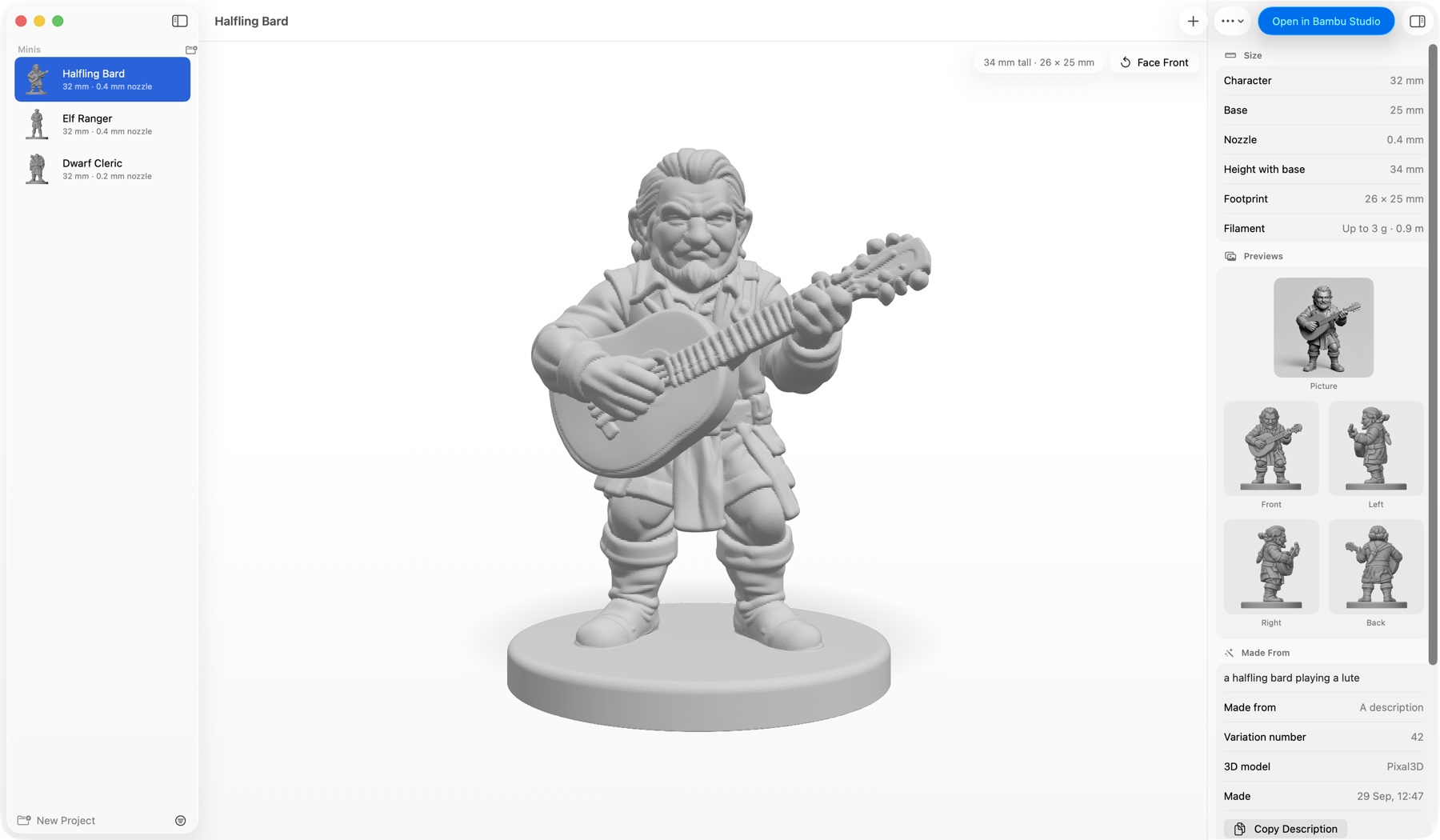
Make a mini, step by step
- Press New Mini in the toolbar, or Cmd+N.
- Under What are you making?, choose Character or Object.
- Under Start from, choose Picture and drop one in, or Description and write a sentence.
- Check its Name, and the Project it goes in.
- Choose how big to make it, on the right. It's sized for your printer's nozzle, which you choose once in Settings.
- Press Make Mini.
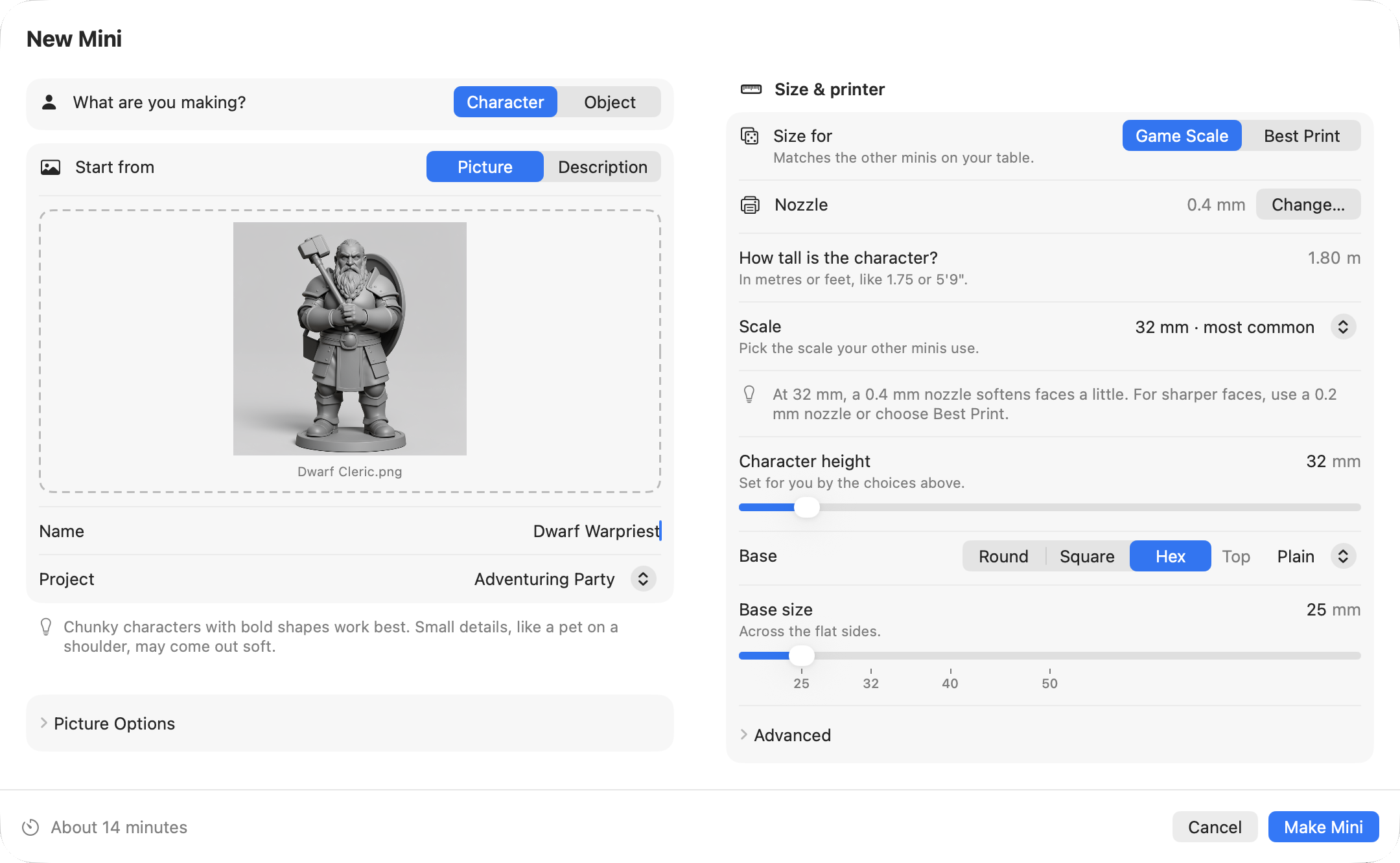
The sections below go through each step.
A character, or an object
Character is a tabletop figure, a mini: it stands on a base, sized for your table. Object is anything else you want to print, like a teapot, a car or a chess piece: it's sized by its longest side, stands on its own flat bottom, and gets no base unless you ask for one.
Mimic draws and sculpts each kind differently, so choose before you start. Chunky characters and solid objects with bold shapes work best. Small details, like a pet on a shoulder or a thin handle, may come out soft.
Start from a picture or a description
From a picture
Choose Picture, then drop a picture on the dashed box, paste it (Cmd+V), or click the box to choose a file. You can also drag a picture straight from Photos or a web page, or take one with your iPhone from the File menu (Import from iPhone or iPad).
For a character, the best picture shows the full body, head to feet, on a plain background. For anything else, the whole object on a plain background. Mimic warns you if a picture is small or, for a character, wider than it is tall.
The picture's file name becomes the mini's name, which you can change.
Under Name and Project, Picture Options is closed: most pictures need nothing there. Open it for more pictures of the back and sides, It's a cartoon, the grey sculpt switch and What to change. Each keeps its usual choice while it's closed. Edit & Make Again… opens it when the mini used any of them. What makes a good picture, and each of these options: see Better minis from pictures.
From a description
Choose Description and write a sentence, like "dwarf cleric holding a warhammer against his chest, shield on his back". Mimic fills in a name from it, such as "Dwarf Cleric".
A description needs Draw Things, a free app: Mimic uses it to draw your character first. If it isn't set up, New Mini says so, with Open Settings. See Getting started. Or have an online service (Black Forest Labs or OpenAI) draw it with your own API key, instead of Draw Things: then your description is sent to that service, and each picture is one paid request. Until a key that works is saved, New Mini says so, naming the service: "A description needs a working OpenAI key.", for example. See Choose what makes the pictures.
Let the AI helper write a fuller description
Got only a few words? An AI helper can turn "elf archer" into a full description, ready for Mimic to draw. It's off unless you choose one:
- Open Settings (Cmd+,) → Pictures.
- Under AI helper for descriptions, choose a Helper: Claude (Anthropic) or an OpenAI-compatible service with your own API key, or Ollama, on this Mac.
- Press Test to check it works.
Then New Mini's description has Improve Description. Press it, and the helper's version appears under Improved description: Make Mini draws from that one. Change anything you like, or press Use Original to go back to your own words. Closing New Mini before the helper answers stops its request.
What the helper sees
A cloud service receives only what you type: a description, or what to change in a picture, never the picture itself. Your key is kept in your Mac's Keychain. With Ollama, what you type never leaves your Mac.
Name it, and pick its project
Name is how the mini is listed, and what its print file is called. Names keep their accents, capitals and other alphabets, so "Élodie" or "D&D Bard" show as you typed them. If you already have a mini of that name, New Mini says so: pick another, or resize the one you have.
Project is the folder it's kept in, and where it's listed on the left. It starts on the project you're looking at; choose Unsorted for none, or New Project… to make one and name it there. Right-click a project → New Mini in This Project… does the same. More in Your minis and projects.
Choose a size
On the right of New Mini, under Size & printer:
- Nozzle: the tip your printer prints through, as chosen in Settings → General → Your printer's nozzle. Change… opens Settings. Most printers come with 0.4 mm · standard.
- Size for: Game Scale to match the other minis on your table, or Best Print for the clearest faces your nozzle can give.
- Base: round, square or hex, a plain Top or one with a floor, and its size.
Advanced has the extra thickness for thin parts, a magnet hole, using the character's own base, and the variation number. Sizes and bases explains every choice.
The Variation number is what makes each drawing different: the same description and the same number give the same drawing. Change it for a different take.
Press Make Mini
Beside Make Mini, New Mini shows how long the mini takes, roughly 8 to 15 minutes depending on the 3D model. Once you've made a few minis, it says how long on this Mac. If something's missing, the same place says what, like "Add a picture to start" or "Give your mini a name", and Make Mini stays off until it's done.
If another mini is already being made, it says "Joins the queue" instead, with how many are ahead and when this one should be ready.
Follow its progress
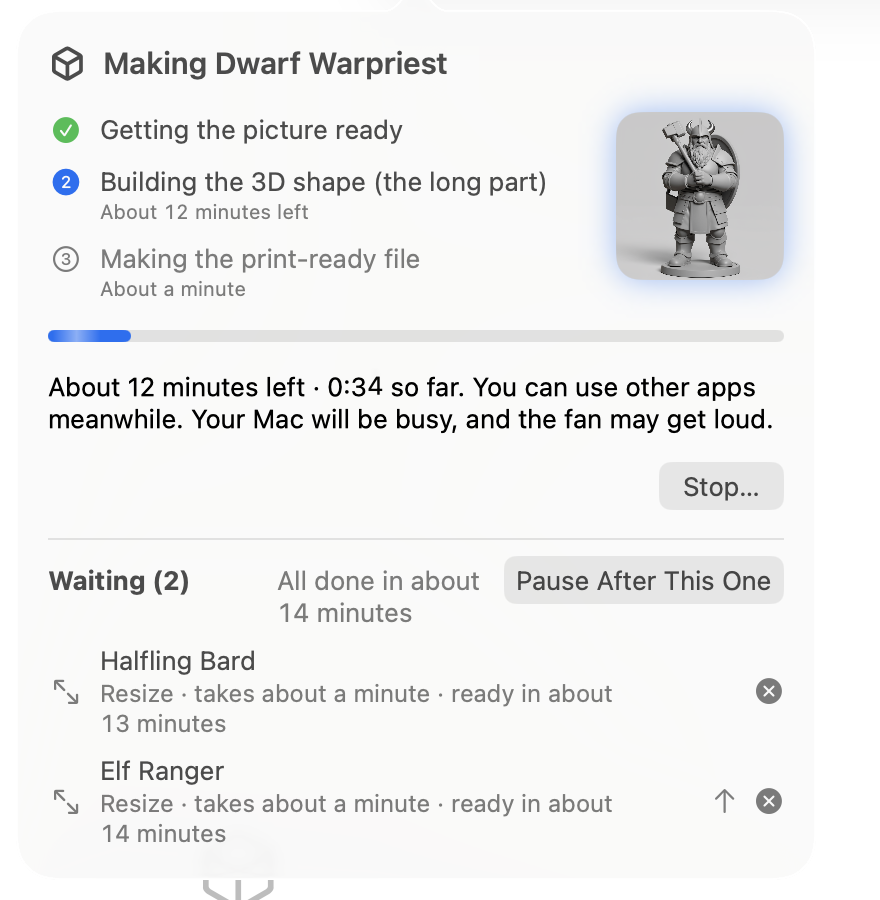
Press Make Mini and New Mini closes. You can keep using Mimic, and your Mac, while the mini is made.
The mini's progress is in the toolbar: its name and how long it's been going. Click it to see the three steps (getting the picture ready, building the 3D shape, and making the print-ready file), how long each has left, the minis waiting after it, and Stop…. Drag that popover off the toolbar to keep it open in a small window of its own.
The mini's page in the list says which step it's on, with Show Progress.
When it's done, the toolbar says so. Click it for Open in your slicer, or Try Again if something went wrong.
Get told when it's ready
While you're in another app, or Mimic's window is closed, Mimic sends a notification when a mini is ready, didn't finish, or has a picture for you to check. Each has a button: Open in your slicer, Try Again, or Build Shape. Click the notification itself to open Mimic on that mini.
Your Mac asks whether Mimic may send notifications the first time a mini starts.
Close the window, or quit
Close the window and the mini carries on: Mimic stays in the Dock while a mini is being made or waiting, and click its Dock icon to bring the window back. Once nothing is being made or waiting, closing the window quits Mimic.
The Dock icon shows a progress bar while a mini is made, and a badge counting the minis that are ready and you haven't looked at yet. Right-click it for New Mini…, Show Progress, Stop Making… and pausing the queue.
Quit Mimic while a mini is being made and it asks first. If you quit, the mini goes back to the front of the queue, and the next time you open Mimic it carries on from the last step it finished. Minis waiting in the queue follow. If Mimic quits unexpectedly instead, the mini says "Mimic stopped while making it. Try Again." and Try Again carries on from the step it was on.
Your Mac doesn't go to sleep on its own while minis are being made or waiting. The screen can still turn off, and closing the lid still sleeps it.
Make several at once
Press Make Mini while another mini is being made, and the new one waits its turn. You can line up as many as you like: The queue shows them, and lets you reorder, pause or take one out.
Drop several pictures on New Mini at once, and each becomes a mini in the queue, named after its file, all with the same settings: kind, project, sizes, grey sculpt and any change you typed. A file Mimic can't use is skipped. Rename the minis afterwards if you like.
Make a mini again, with changes
Right-click a mini → Edit & Make Again… opens New Mini filled in from it: its picture or description, grey sculpt and cartoon choices, sizes and base, project and variation number, under a new name. Change what you like and press Make Mini. The new mini is a mini of its own, not one of the first one's versions.
It keeps the nozzle the mini was made with. If that isn't the one in Settings, Nozzle says so, with a button to use the one in Settings instead.
If the mini was made with another 3D model than the one chosen in Settings, New Mini says "Made with …", with a button to use your Mac's choice instead.
To make the same mini again with a new variation number, or the same picture with a new 3D shape, see Versions.
Make one in Terminal
Everything here is also the mimic make command, with the same choices as options. See
Mimic from a terminal.