
Today, I’d like to share a fun feature of Spring with you. It’s not new or crucial, but it’s definitely enjoyable!
Normally, when you launch your Spring Boot app, you see a standard banner in the logs like this:
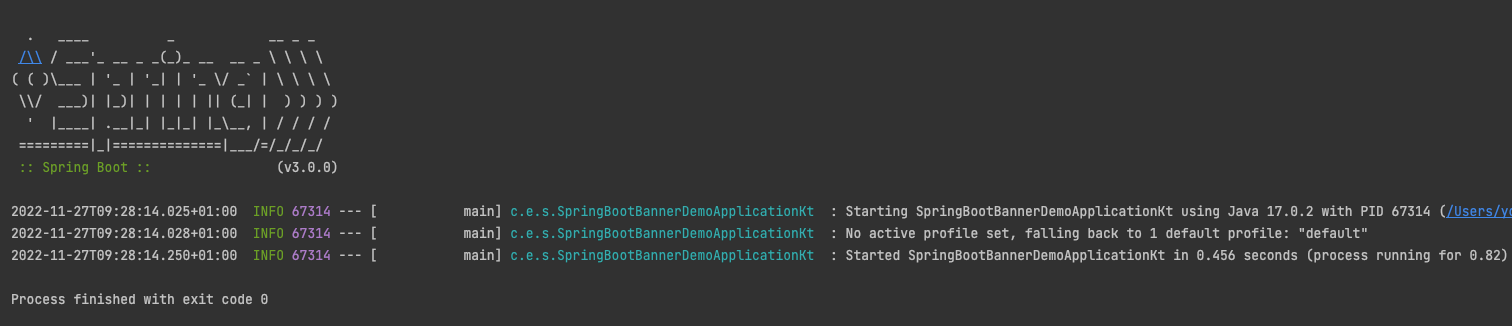
But have you ever thought about replacing that Spring banner with your own custom banner? If you have, then this article is for you!
To begin, let’s visit https://patorjk.com/, a website that helps us create custom text. You can enter the desired text for your log and choose from a variety of fonts. For example:
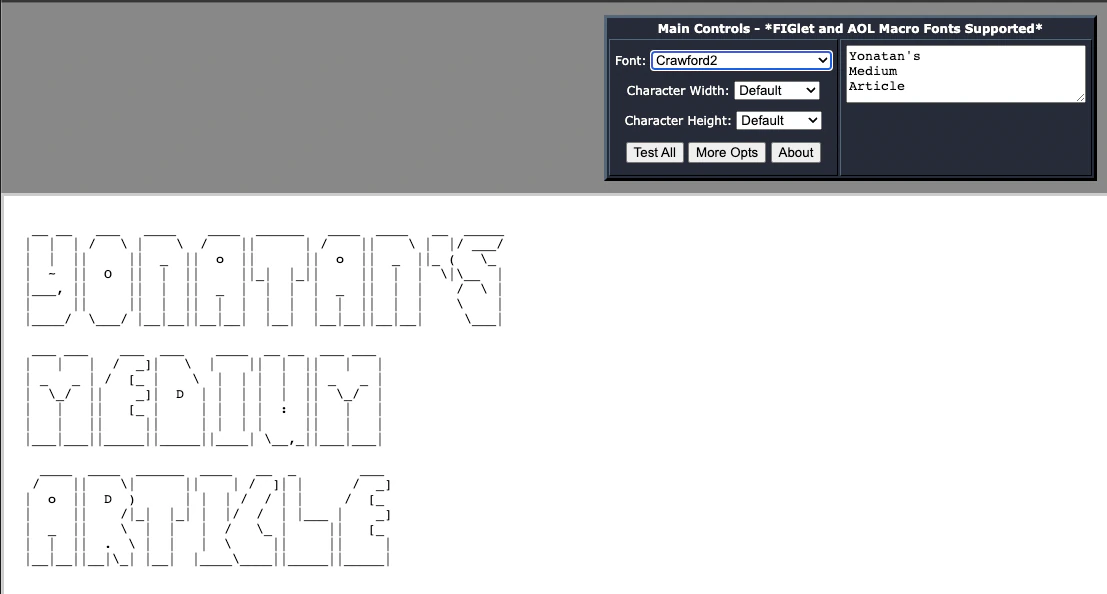
You can also click the Test All button to explore all the available options.
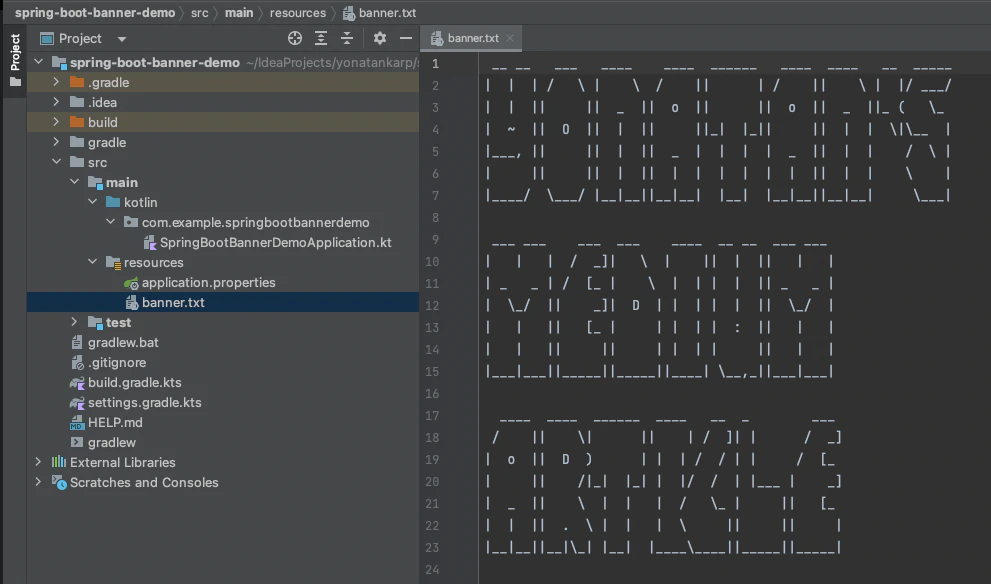
Now, let’s copy our text and place it inside the application under /resources/banner.txt, as shown below:
Next, let’s relaunch our app:
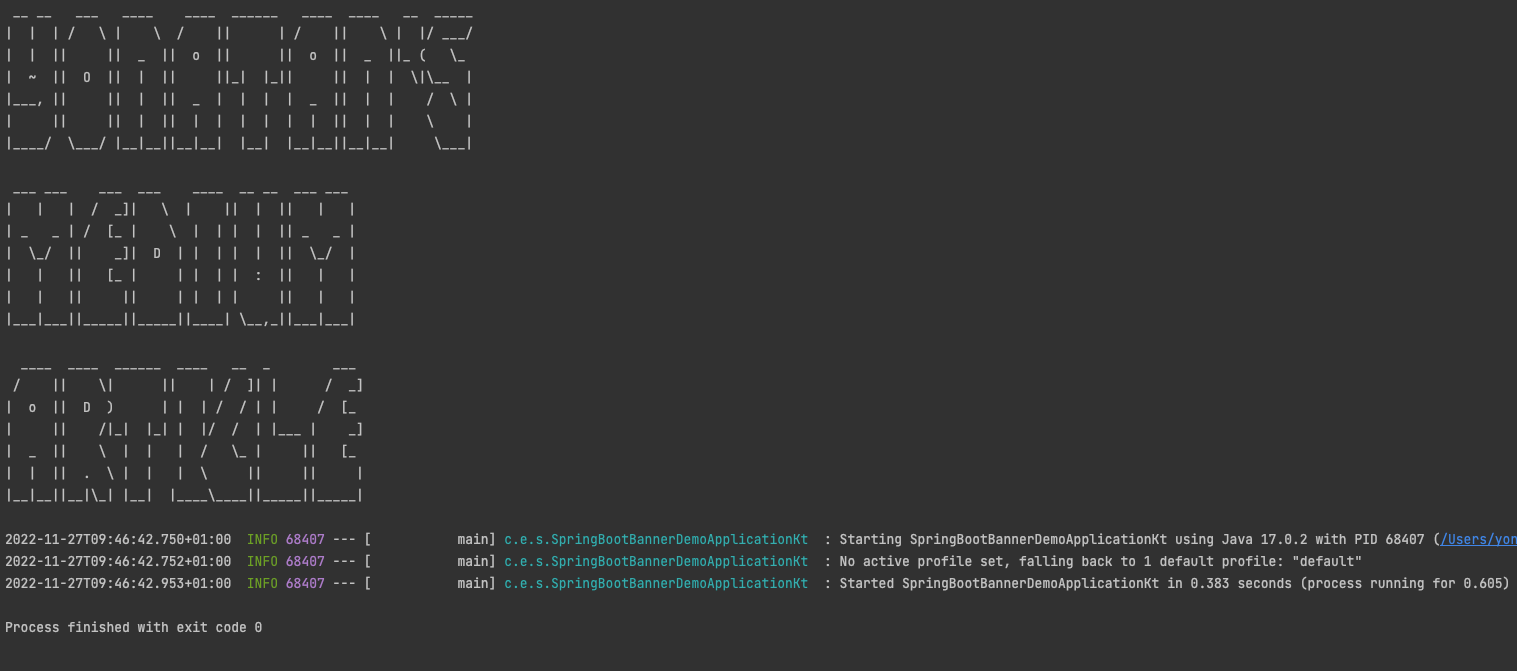
As you can see, our custom banner has been successfully replaced! Great job! :)
If you’re using Spring Boot 2, you can even convert images into ASCII art. However, please note that this functionality is deprecated and has been removed in Spring Boot 3.0.0.
To convert images into ASCII art, follow these steps:
- Add your image to the resources directory. For this article, we’ll use the following logo:

- Add the following configuration to your
application.propertiesorapplication.ymlfile to specify the location of your image:
spring:
  banner:
    image:
      location: sumup.png
      height: 20 # can be adjusted to resize your banner
- Make sure there’s no
banner.txtfile in your resource directory.
Let’s run our app again…
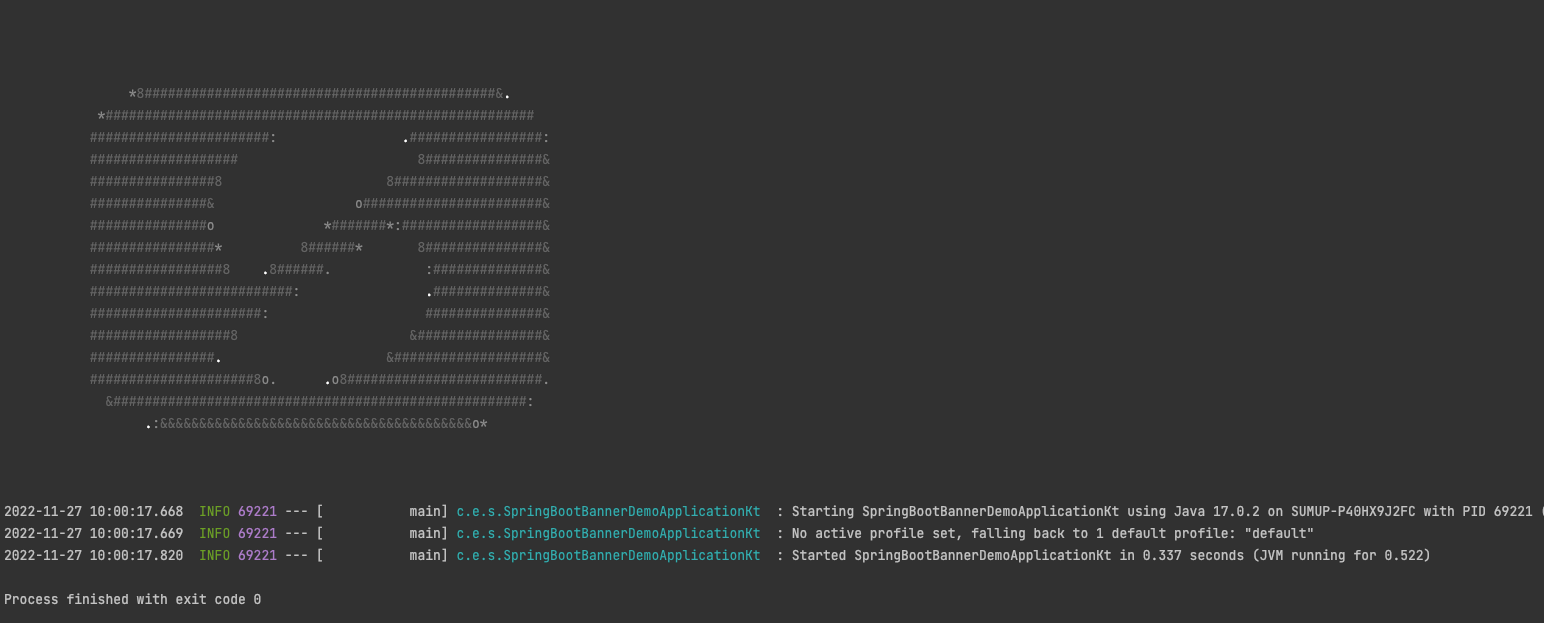
As you can see, our new logo magically appears!
Summary
In this short article, I’ve shown you how to customize your Spring banner using text or even images (for Spring Boot 2.x.x) in just a few minutes.